EHRClient
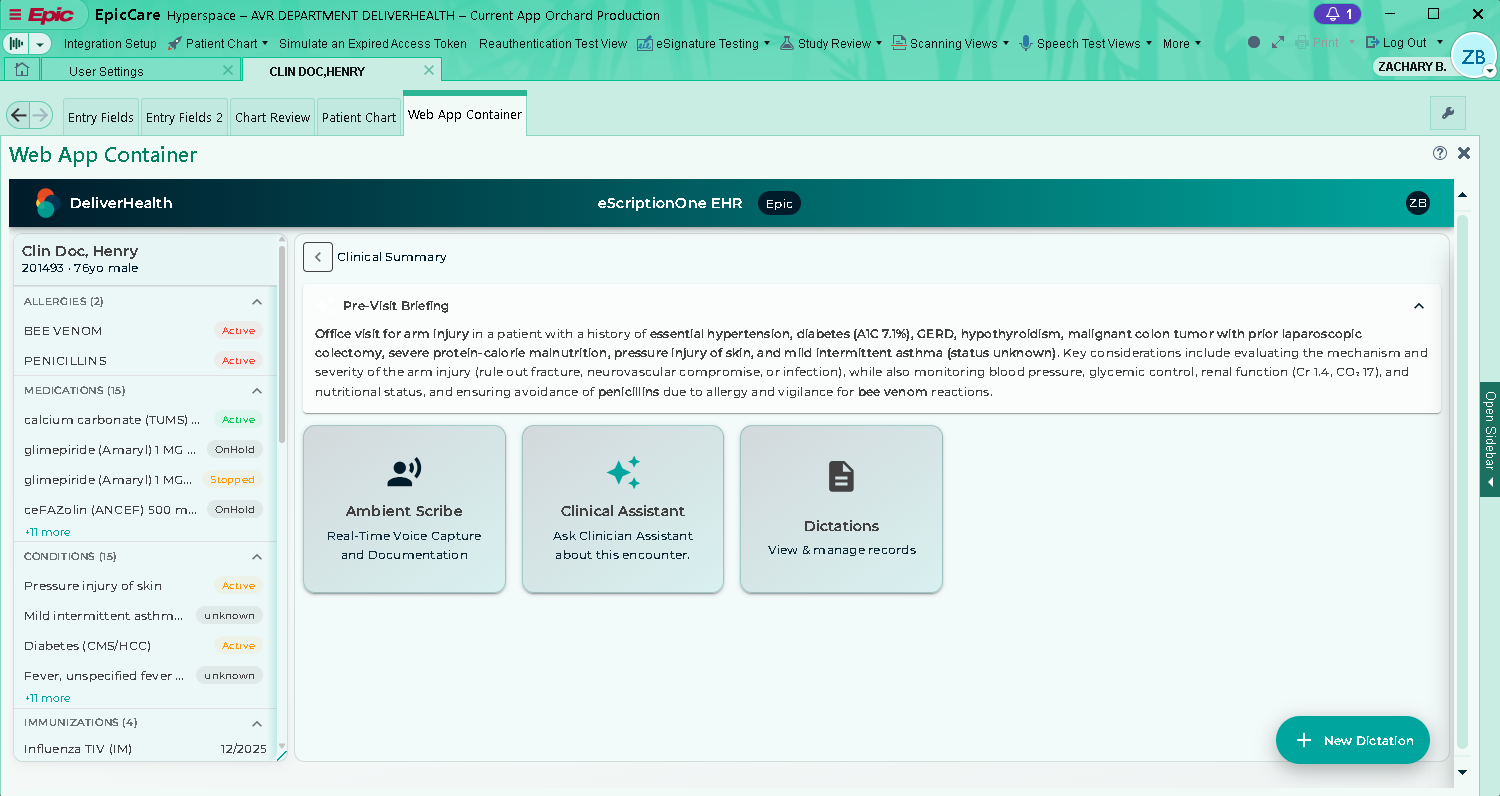
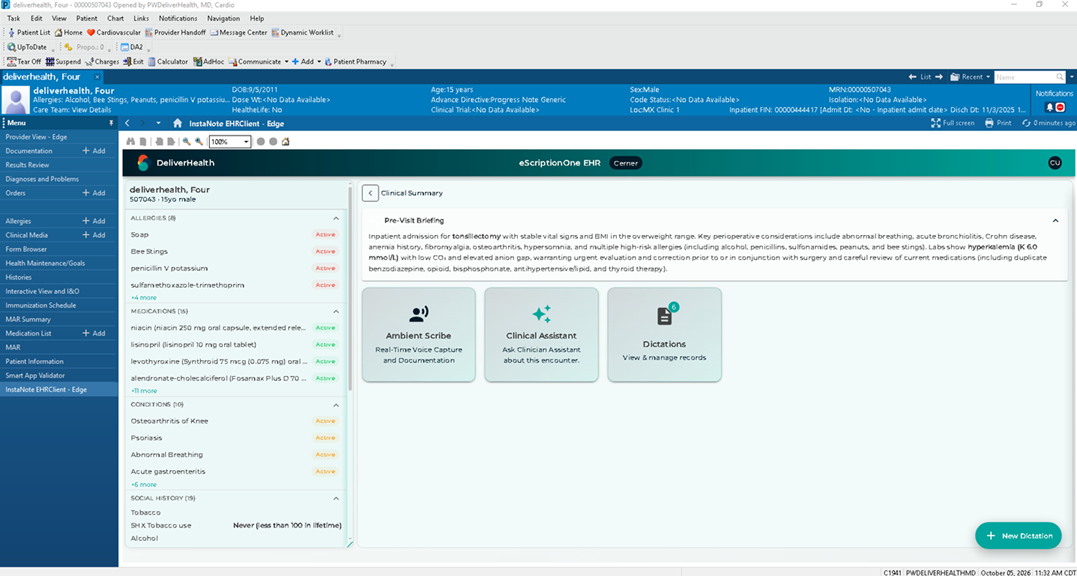
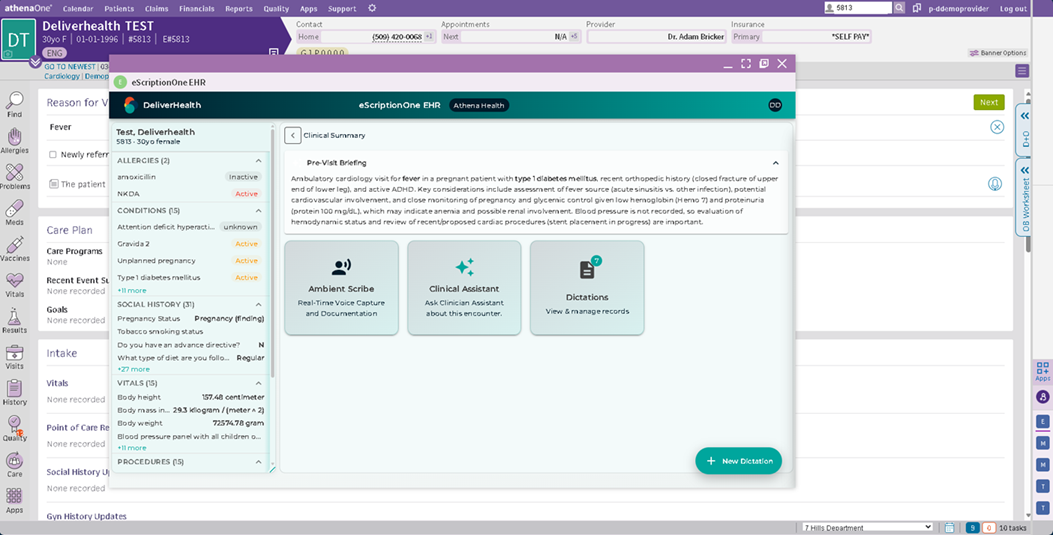
EHRClient is a clinician-focused documentation app embedded in your EHR. It supports point-of-care workflows such as dictation and ambient documentation, note editing, and other features using the patient and encounter context opened in the EHR.
To edit notes outside the EHR, use the InQuiry Note Editor.
Important
Follow your organization’s policies for patient identification, clinical documentation, and handling protected health information. Always review clinical content before using it.
Getting Started
- Open the patient chart and the intended encounter in your EHR.
- Launch EHRClient from the patient's chart. Where EHRClient appears depends on your EHR and how your organization has set it up.
- Confirm that EHRClient has opened for the correct patient and encounter before recording or working with documentation. If the patient or encounter is missing or incorrect, see Troubleshooting.
Signing in
EHRClient uses your EHR sign-in, so you don't sign in to EHRClient separately and you won't see an eSOne sign-in screen. Your organization sets up an eSOne account for you so that EHRClient can connect securely to your EHR, but you don't need its sign-in details.
- Your EHR may ask you to sign in again while you're using EHRClient. This is normal. Sign in with your EHR credentials to continue.
- You don't need to sign in to InQuiry to use EHRClient. If you also use InQuiry, you can still sign in to it as usual.
Dictation
Use Dictation to create a recording for the selected patient.
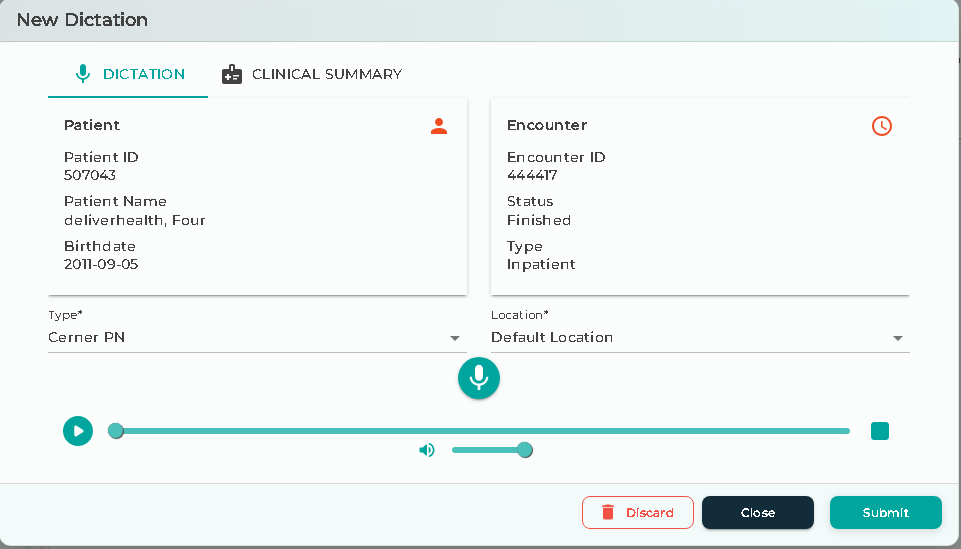
- Click + New Dictation in the bottom right corner of EHRClient.
- Select the Type (document type) and Location. Both are required.
- Click the microphone button to start recording, then dictate the note.
- Click the microphone button again to stop recording.
- Click Play to listen to the recording and make sure it is complete.
- Click Submit to send the recording.
- Click Close to keep the recording as a draft and finish it later.
- Click Discard to delete the recording.
The Clinical Summary tab in the New Dictation window shows the same patient information as the panel on the left side of EHRClient, so you can refer to it while you record.
Viewing your recordings
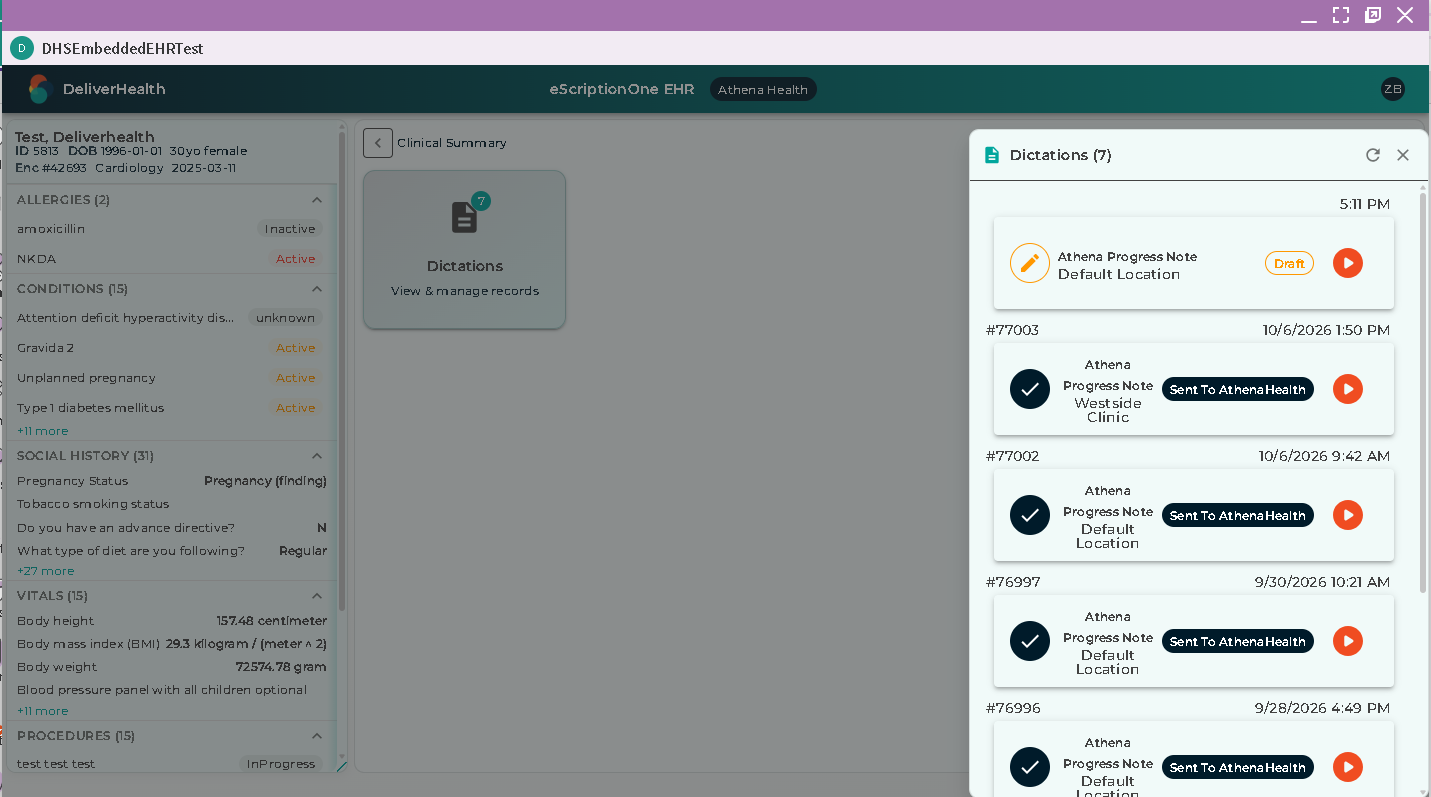
Click the Dictations tile to open the list of recordings for the patient in the right panel. The number on the tile shows how many recordings there are.
- Drafts have a Draft stamp and an orange pencil icon.
- Uploaded recordings have a checkmark.
Drafts
A recording you close without submitting is saved as a draft and appears in the Dictations list with a Draft stamp. To finish and submit a draft, open it from the Dictations list. You can resume a draft even if EHRClient or your browser closed before you submitted it.
Warning
Drafts are stored in the browser on the computer you recorded on. They're kept until that browser's stored data is cleared or the browser removes them to free up storage, and either one deletes any unsubmitted drafts. Submit drafts as soon as you can.
Ambient
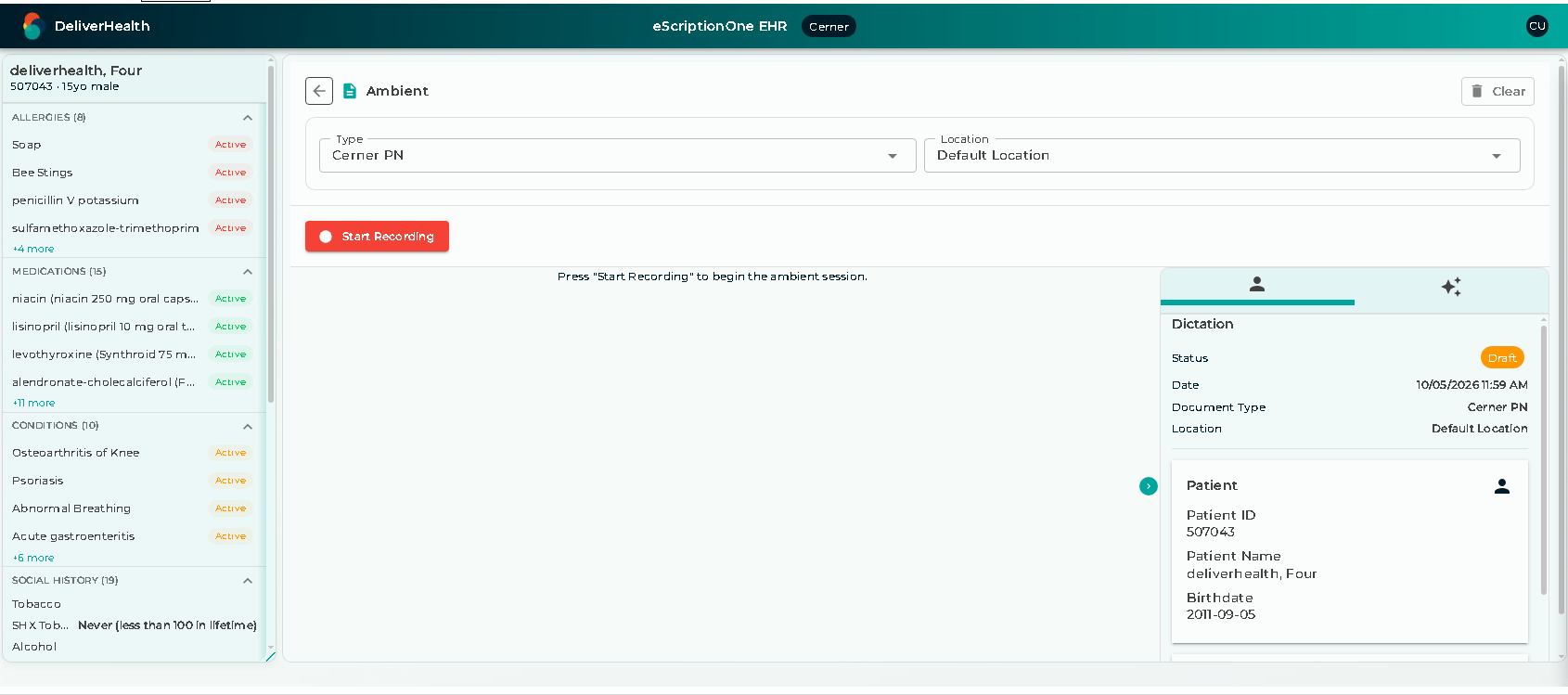
Use Ambient to capture a clinician-patient conversation and generate note content.
- Click Ambient Scribe in EHRClient.
- Before recording, review the Type and Location selections and change them if needed.
- Click Start Recording.
- During the conversation, click Pause to temporarily pause recording. Click Resume to continue.
- Click Stop & Generate when the conversation is finished.
- Wait while the note is generated, then review and edit the note. See Reviewing Documentation.
Click Clear only when you intend to remove the current Ambient content and audio from the panel.
Warning
Ambient recordings aren't saved as drafts. If the session is interrupted before you click Stop & Generate (for example, if your browser closes), the recording can't be resumed and you'll need to start a new one.
Editing Note Content
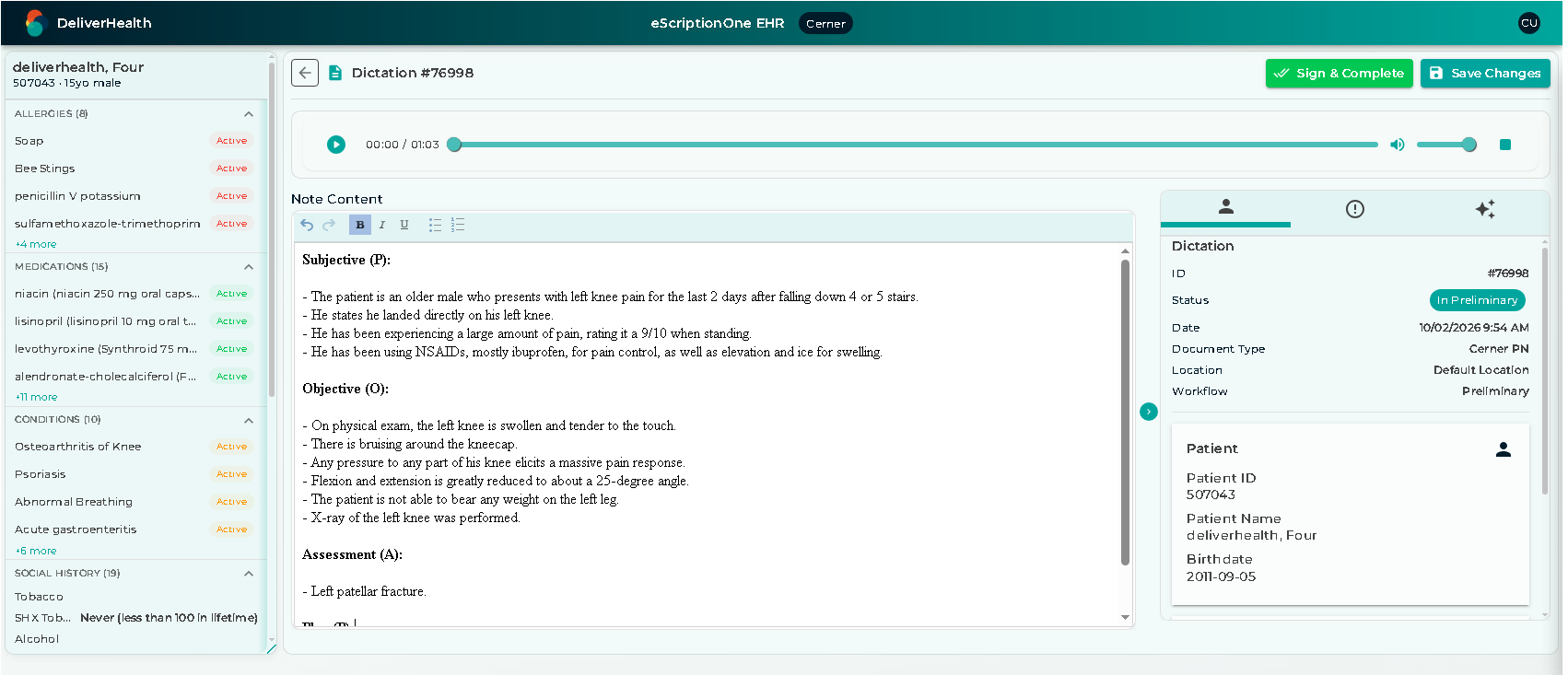
Use the note editor to review and update note text before you complete the note.
- Click the Dictations tile, then click the recording in the list. If it has note content, the note editor opens. This works the same way for dictation and Ambient recordings.
- Confirm the patient and encounter are correct.
- Review the note content.
- Edit the text using the available editor controls. Correct errors and add any necessary information.
- Read through the complete note to confirm it is accurate and complete.
- Save or complete the note:
- Save Changes saves your edits without sending the note to the EHR.
- Complete completes the note and sends it to the EHR. It adds the date signed and any signature information your organization has set up, the same as completing a preliminary note in InQuiry. Your organization may use a different label for this button, such as Sign & Complete or Submit to EHR.
Templates are applied automatically when note content is generated from your recording.
The icons on the right side of the note editor open panels of related information. Which icons you see depends on your organization's setup.
- Patient Info - shows the patient and appointment details.
- Suggested Codes - shows suggested medical codes for the note.
Reviewing Documentation
Before submitting or completing documentation:
- Confirm that the content belongs to the correct patient and encounter.
- Review dictation audio and generated note content for accuracy and completeness.
- Correct errors using the available controls.
Troubleshooting
The Patient or Encounter Is Incorrect or Missing
Stop the workflow. Verify the patient chart and encounter in the EHR, then reopen EHRClient from that embedded workflow. If the context remains incorrect or unavailable, follow your standard support guidelines for assistance.
Recording Does Not Start
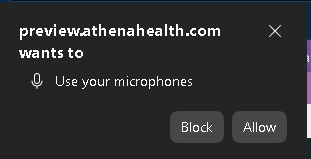
Your browser may ask for permission to use the microphone. Allow access to record.
If recording still does not work:
- Check that the browser has microphone permission.
- Confirm that the intended microphone is connected and selected in your device settings.
- Check that another application is not preventing microphone access.
- If the issue continues, follow your standard support guidelines for assistance.